

TL;DR
Turn blog posts into Pinterest pins using three proven methods:
1. Extract powerful quotes and stats for eye-catching graphics
2. Transform your blog structure into engaging carousel pins
3. Turn how-to content into step-by-step video pins.
Create 3-5 different pins per blog post to maximize reach and drive consistent traffic.
Pinterest rewards variety and consistency, not perfection.
Table of Contents
Introduction

Here’s something that’ll make you feel better: one of the most common Pinterest mistakes is creating just one pin for each blog post and leaving it at that (source). Yeah, I did this for weeks before I figured out what was actually going on.
I’d spend three hours writing a killer blog post about sales funnels, then slap together one generic Pinterest pin, and wonder why my traffic was basically nonexistent. Sound familiar? The thing is, you’ve already done the hard work by creating that blog content.
Turning it into multiple Pinterest pins shouldn’t feel like starting from scratch every single time. And honestly? It doesn’t have to.
Pinterest isn’t just another social media platform where you post and pray. It’s a search engine, and your strategy needs to reflect that. People are actively searching for solutions to their problems, and your blog post probably has like five different angles that could each be its own pin.
I’m gonna walk you through three methods that actually work.
Let’s dive in!
Method #1: Pull Quotes and Stats (Turn Your Words into Eye-Catching Graphics)
Your blog post is probably packed with valuable information – stats, expert quotes, surprising facts. These nuggets are gold for Pinterest, but most bloggers just ignore them.
Many beginners create pins without text overlay, which can confuse viewers about what the content offers, leading to lower click-through rates (source).
Here’s what I do. I open my blog post and hunt for the good stuff. Any sentence that makes me go “oh yes, that’s interesting” gets highlighted.
For example, if I wrote “73% of coaches struggle with tech overwhelm in their first year,” that’s becoming a pin. If there’s a direct quote from a case study, that’s another pin.
The mistake people make is they create one boring pin with the blog title and call it done. But your blog has like 10-15 shareable moments buried inside it!
Pull those out, stick ’em on a vertical graphic (1000×1500 pixels works great), and boom – you’ve got multiple pins from one post. And please, use bold fonts and short phrases that convey the main value of your content.
Pro tip: I keep a Google Doc where I paste these pull quotes as I’m writing my blog posts. Makes the pin creation process way faster later.
Method #2: Transform Your Blog Structure into Carousel Pins
Your blog post already has a structure, right? You’ve got an intro, main points (probably with H2 or H3 subheadings), and a conclusion. That structure? That’s your carousel pin blueprint sitting right there.
Posting the same content repeatedly can lead to audience fatigue and decreased reach, so you should experiment with a variety of pins including carousel pins (source).
I take my blog post’s main sections and turn each one into a slide. Let’s say I wrote a post about building high-converting coaching funnels. My subheadings become slides: Understanding Your Audience, Creating Your Lead Magnet, Designing Your Landing Page, Writing Email Sequences, and Measuring Results.
Boom – there’s five slides right there. Slide one is the title/hook, slides two through six are each subheading with a quick summary, and slide seven is my call-to-action.
The key is keeping each slide super readable. Make sure your text size is large enough to be read without zooming in, and use bold, clear fonts that are easy to read on both desktop and mobile.
And don’t delete carousel pins that seem like they’re underperforming at first. Sometimes pins can appear as though they are underperforming, but as Pinterest trends are always changing, these seemingly irrelevant pins may randomly pick up in impressions and outbound clicks.
Method #3: Repurpose Blog Content for Pinterest (How to Content into Step-by-Step Video Pins)
Video pins still freak some people out, but hear me out. You don’t need fancy equipment or to show your face if you don’t want to.
If your blog post is teaching people how to do something, you can turn that into a simple video pin. The biggest mistake? Using bad video or photo quality, which just isn’t acceptable on a platform that is completely visual (source).
Here’s what works: Take a tutorial blog post and break it into 60-second chunks. Each major step becomes a scene in the video. Screen recordings are perfect for this – tools like Loom or even your phone’s screen record feature make it dead simple.
The easier route? Go super simple with slideshow videos. Take 5-7 images from your blog post, add text overlays for each step, and use a free tool like Canva Video to stitch them together with background music. Takes maybe 30 minutes tops, and you don’t need to record anything live.
One thing though – story pins work off of multiple slides, like you might see in an Instagram story, so just having one video playing isn’t great for engagement, and you should add an end call-to-action slide (source).
Understanding CTA psychology makes a huge difference here. Your end slide needs to be compelling enough that people actually click through to your blog.
Pinterest prefers vertical videos (that 2:3 ratio), and keep them under 60 seconds if possible. And please, always add captions! So many people watch with sound off.
Ready to Optimize Your Entire Funnel?
Pinterest is amazing for driving traffic, but what happens when those visitors hit your funnel? That’s where most coaches lose people.
If you’re getting Pinterest traffic but your funnel’s not converting, you’re leaving money on the table. The good news? Small tweaks can make a massive difference.
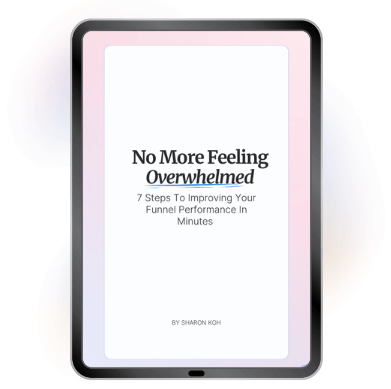
Grab my free guide: “7 Steps To Improving Your Funnel Performance In Minutes”
Discover the exact actionable fixes you can implement today.
Inside you’ll learn how to identify funnel bottlenecks and apply proven funnel psychology secrets that turn browsers into buyers.
Key Takeaways
- Stop creating just one pin per blog post – Your content has multiple angles worth sharing
- Extract shareable moments – Stats, quotes, and key insights make perfect standalone pins
- Use your existing structure – Blog subheadings easily transform into carousel pin slides
- Repurpose tutorial content – How-to posts work amazingly well as short video pins
- Prioritize readability – Bold fonts, vertical dimensions (1000x1500px), and mobile optimization are non-negotiable
- Be patient with performance – Pins can take months to gain traction, so don’t delete underperformers
- Batch create for efficiency – Make 3-5 pins per blog post in one sitting to save time
- Consistency beats perfection – Regular pinning with good-enough content outperforms occasional “perfect” pins
Wrapping It Up
You’ve already created the content. The heavy lifting is done! Now you’re just repackaging it in different formats so it reaches different people on Pinterest who search and browse in different ways.
Start with one method. If you hate video, skip that for now and focus on pull quotes or carousel pins. There’s no rule that says you gotta do everything at once.
The real game-changer for me was creating multiple pins for each blog post with unique designs. And remember – consistency doesn’t mean perfection. It means showing up regularly with good-enough pins that actually link back to your valuable content.
So grab your latest blog post, pick one of these three methods, and create your first repurposed pin today. Your future self (and your website traffic) will thank you.
FAQ
How many Pinterest pins should I create per blog post?
Create at least 3-5 different pins per blog post to maximize your reach. Pinterest allows you to create multiple pins for the same piece of content, each with a different design, format, or text overlay, which boosts the chances of your content being seen by different audience segments . Each pin can highlight different angles, quotes, or takeaways from your content.
What’s the best Pinterest pin size for blog posts?
The optimal Pinterest pin size is 1000×1500 pixels (2:3 ratio). This vertical format performs best on both desktop and mobile. Avoid square or horizontal pins as they don’t stand out in the Pinterest feed and get less engagement.
Can I repurpose the same blog content multiple times on Pinterest?
Yes! By repurposing content, you’re not constantly scrambling for new ideas – you’re maximizing the reach of what you’ve already created. Just make sure each pin has a unique design and text overlay. Avoid posting identical pins, but different variations of the same content are encouraged.
How long does it take for Pinterest pins to drive traffic?
Pinterest is a long-term strategy. Pinterest content has staying power and can drive traffic to your site for months or even years after a pin is published (source). Some pins perform immediately, while others take 3-6 months to gain traction. Consistency is key.
Do I need video pins or are static pins enough?
Both work, but variety performs best. You should experiment with a variety of pins including static images, carousel pins, and video pins to attract different audience segments. Start with what you’re comfortable with, then expand into other formats.
Should I delete Pinterest pins that aren’t performing well?
No! Deleting underperforming pins can prematurely hinder your overall Pinterest strategy because sometimes pins can appear to be underperforming, but as Pinterest trends are always changing, these seemingly irrelevant pins may randomly pick up in impressions and outbound clicks. Instead, update them with fresh designs or descriptions.
What tools do I need to create Pinterest pins from blog posts?
Canva (free or Pro version) is the most popular tool for creating Pinterest graphics. For video pins, you can use Canva Video, Loom for screen recordings, or even your phone’s built-in screen recording feature. Scheduling tools like Tailwind can help you batch-schedule pins.
How often should I pin to Pinterest for consistent blog traffic?
Pinterest thrives on consistency, which means pinning regularly, ideally several times per week or even daily if possible. Start with 3-5 pins per day and scale up as you build your rhythm. Quality and consistency matter more than quantity.